

What is phishing?
Phishing is a way cybercriminals steal sensitive information like passwords, banking details, or personal data by pretending to be a trusted person or organisation.
They usually do this through fake emails, texts, social media, or chat messages that look legitimate but are designed to trick you into clicking a link, opening an attachment, or giving away your details.
STOP. THINK. VERIFY.
How to spot phishing?
1. Assess the email or message
- Expectation: Are you expecting a message from this person or organisation?
- Tone: Is it urgent, threatening, overly rewarding, or pressuring you to act quickly?
- Context: Would you normally get this kind of message in your UOW mailbox or Teams?
- Request: Is it asking you to click a link, open an attachment, or enter personal details or your password?
2. Check the sender's name and address
- Name: Do you recognise the sender’s name or role?
- Address: Is the email address or Teams account coming from somewhere you’d expect (e.g. official UOW.EDU.AU domain)?
- Match: Does the address match the content (e.g. “UOW” email but from a random Gmail)?
3. Hover over links or buttons
- URL check: Hover (don’t click) over links or buttons to see where they really go.
- Legitimacy: Does the URL look genuine, correctly spelled, and consistent with the organisation’s real website? If it looks odd, shortened, or unrelated then treat it as suspicious.
4. Verify suspicious messages
- Second channel: If anything feels off, verify using a separate method e.g. call the person, send a fresh email to their known address, or check via an official portal.
- Do not reply with details: Never confirm passwords, MFA codes, or banking details via email, SMS or chat.
How to report phishing?
For Microsoft Outlook emails
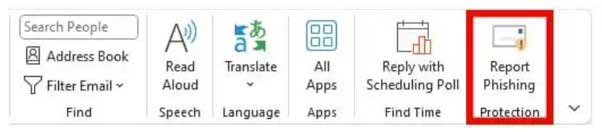
Use the “Report Phishing” button in the Outlook toolbar when you receive a suspicious email. This sends it directly to the IT Security team for analysis.
For Microsoft Teams messages
- Staff should take a screenshot of the chat, include the sender’s name and time, and attach it to their ticket in the MyServices Portal.
- If it is clearly malicious, you can also block or mute the user in Teams after reporting.
Log a support request
- Students - visit AskUOW.
- Staff - Log a ticket via MyServices Portal.
Call the IT Service Desk
Call +61 2 4221 3000 (or Ext 2130000).
Cyber safety is everyone’s business. Share the tips above with your friends and family to keep your information online safe.