
Environment

Make Your Screen Green with Wallpapers!

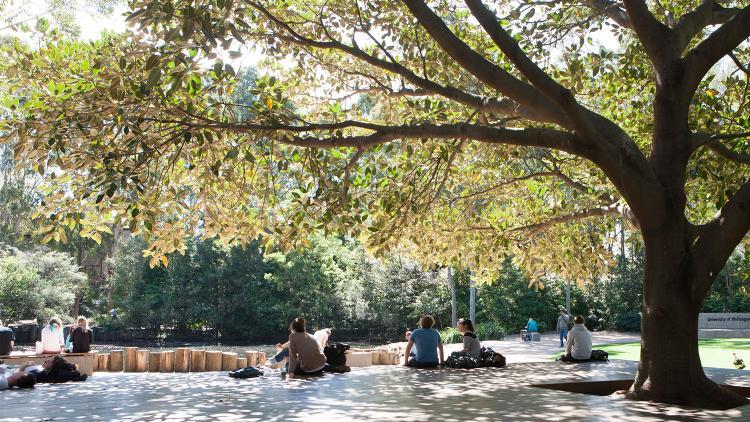
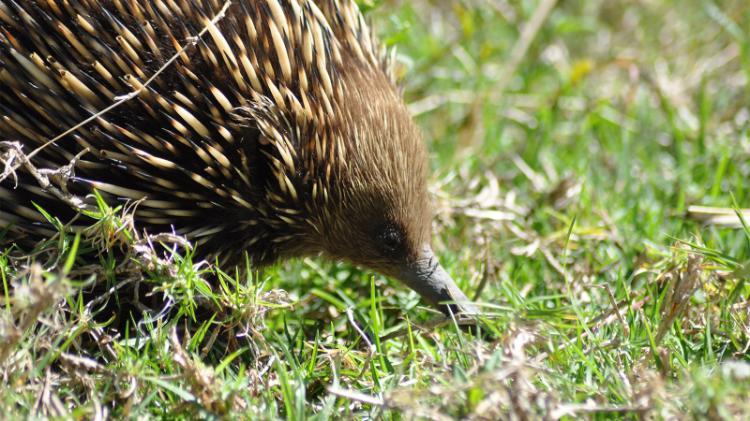
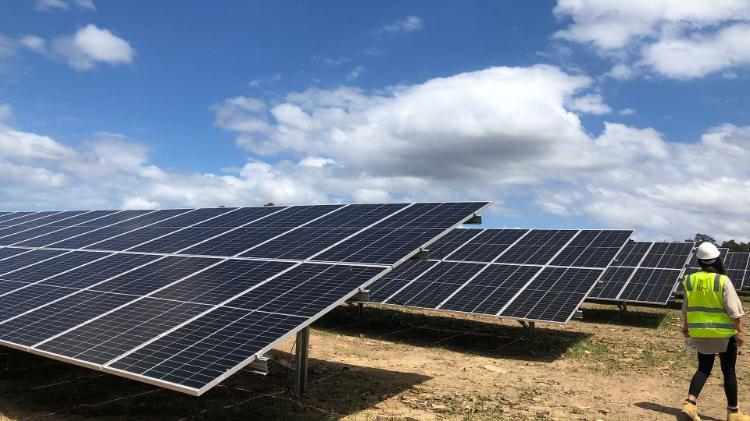
The ESI Unit are proud to present their range of background wallpapers for your computer screen based on images taken around UOW. 

Green Life Photography Competition (International House Art Room Project)

The International House Green life Photography competition was organised by Dandan JIAN (Jane) to better promote and raise awareness of the 2011 theme for International House -  “Environmental Wellbeing. The competition was open from 21th, March 2011 to 29th, May 2011. All International House residents could join the competition. Categories included rural landscapes, nature, animals, iHouse, UOW campus, and Green lifestyle. Photos were eligible to win a prize as long as the photos match the green life theme, such as the beauty of nature and the happiness that the environment has brought to people.
International House received 213 entries from 22 residents. The photo entries were judged on 11th May by Alison Hemsley (Student Resident Manager, International House), Alison Scobie (Environmental Education and Compliance Officer), Tony Simos da Sulva (Prof. of Art Faculty) and Grahame Hynard (Maintenance Officer, International House).  There were some fantastic photos and it was difficult to choose the winners amongst all the fabulous entries.


First Prize: Leslie Silver
Judges Comment: Captures harmony between nature and built environment.

Second Prize: Leslie Silver
Judges Comment: Conveys an  instant of the power and beauty of nature.

Third Prize: Andrew Pearson
Judges Comment: Strength and fragility in nature.

The other top 7 photos were taken by Mark Mitchell, Ken Chiu, Vee Vien Teh, Dallas Halldorson, Bryn Oliver and Leslie Silver
 

How do I get this on my screen?

  1. Click on whether you require normal or widescreen
  2. Right click the image and select 'Set as Background'. For Mac users just press your button and hold until pop up options appear.
  3. If you have difficulty check your Display Properties settings. (These settings are available by right clicking your desktop and selecting 'properties' from there select the 'desktop' tab). For Mac users go to the Apple Icon and choose 'System Preferences' and then the icon that says 'Desktop and Screensaver'.

NEW: Green life 1st Prize

ESI_1st prize
normal l widescreen

NEW: Green life 2nd Prize

ESI_2nd prize
normal l widescreen

NEW: Green life 3rd Prize

ESI_3rd prize
normal l widescreen

Tree Bark

ESI_MiniTreeBark
normal l widescreen

Forest

ESI_MiniForest
normal l widescreen

Wollongong Beach

Beach Wallpaper
normal  l  widescreen
Australian Native Grevillea
also known as “Robyn Gordon"

ESI Background_Robyn Gordon
normal l widescreen 

Pond
 

ESI August Water Background wide
normal l widescreen

Wind Farm

Wind Wallpaper

normal l widescreen

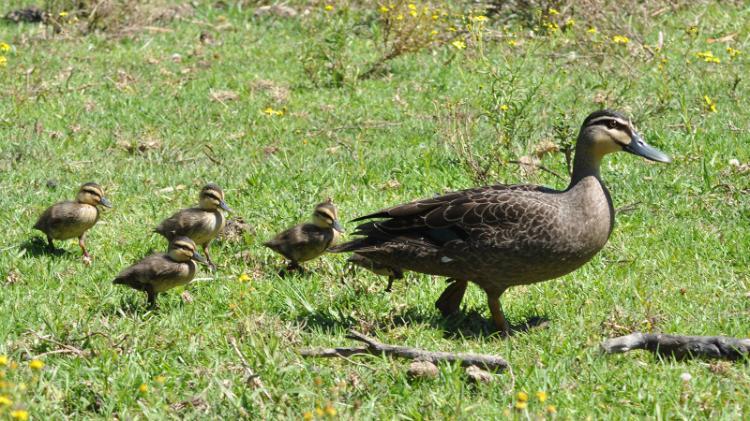
Duckies at UOW

ESI Duckies Wallpaper Homepage

normal  l  widescreen
  

Should I use this as a Screensaver?

No.

Why? Screensavers are activated because you are not using your computer. When you are away from your desk your monitor should be switched off to save energy.

Find out more about switching off electronic equipment.

Follow the below directions if you often forget to turn off your monitor:

  1. Right click your desktop and select 'properties' 
  2. Select the 'screensaver' tab
  3. In the drop down menu select '3D Text' 
  4. Click the 'settings' button. You can now customise the colour of the text, the way it moves and what it says. 
  5. Change the text to 'Turn Me Off' to remind you to turn your monitor off if you are not using your computer. 


Share a photo with us!

To share an image with other users through this page, email it to us.

Please note that by sending us images to make available, you acknowledge that the image is entirely your property and you are allowing us to make the image available here or to use for any other purpose.

Last reviewed: 20 December, 2011